 Login



Boost Your Sales with WhatsApp Marketing
Drive more sales and promote your products and services directly to customers through the world's most popular messaging app.




Use this guide to prepare your business for WhatsApp messaging with Pulseem, connect a number and plan campaigns within your account’s current limits.
Before you start
- Prepare a Meta business portfolio and the business details needed for onboarding. Complete business verification if Meta or the onboarding process requires it; verification and eligibility requirements depend on the account and the capabilities you need.
- Have an active business website with accurate business and contact details.
- Prepare a phone number that your business controls and a list of recipients who have agreed to receive your WhatsApp messages.
Setup with Pulseem
- Onboarding: the Pulseem team helps arrange the connection and the required WhatsApp onboarding steps.
- Phone number: Pulseem can provide a separate virtual number, or help assess the transfer of an existing number you own. Confirm eligibility and the migration process before changing an existing number’s setup.
What you can do in the interface
- Create and manage message templates.
- Send campaigns with supported media and action buttons.
- Manage two-way conversations with recipients.
- Review campaign performance statistics.
- Work with multiple users and support agents.
- Track conversions from campaigns when tracking is configured.
Sending workflow
- Obtain the recipient’s opt-in permission for the messages you intend to send.
- Create a template and submit it for Meta’s review.
- After approval, use the template for campaigns that match its approved purpose.
- Monitor delivery, replies and opt-outs, and adjust future sends accordingly.
You can reply without a template within the 24-hour customer service window opened or renewed by a user’s message. Outside that window, use an approved template.
Technical limits
The body of a standard message template supports up to 1,024 characters. Headers, footers, buttons and other message types have separate limits. Check the editor and the rules for the template type you are using.
Messaging limits count unique recipients outside the customer service window in a rolling 24-hour period. They are shared by all phone numbers in the same business portfolio. They are not a simple midnight-to-midnight count of every message sent.
Messaging tiers
| Stage | Portfolio messaging limit |
|---|---|
| New business portfolio | 250 unique recipients |
| After an approved scaling path | 2,000 unique recipients |
| Further automatic scaling | 10,000, 100,000 or unlimited |
Check your actual limit in WhatsApp Manager > Account tools > Messaging limits. Meta evaluates eligibility and message quality. After reaching 2,000, further scaling depends on high-quality messaging and using at least half of the current limit over the last seven days; eligible portfolios can move up one level within six hours. An upgrade is not guaranteed merely by sending three campaigns.
Important sending precautions
- Use valid WhatsApp numbers and contact only people who opted in. A technically valid number is not proof of consent.
- Do not send spam, misleading content or messages outside the recipient’s expectations.
- Plan batches around the available rolling limit. Messages beyond the available capacity may fail; review delivery statuses before retrying.
- Confirm the charges applicable to your Pulseem account and message category. Do not assume that every failed or blocked message has the same billing treatment.
- Allow a scheduling buffer between large campaigns. The right time depends on your previous deliveries and available capacity; there is no universal rule that starting at noon or waiting exactly two hours guarantees delivery.
Maintaining message quality
Send useful, expected content, respect opt-outs promptly and monitor blocks and reports. Negative feedback can lead to restrictions or template pausing. Review both account status and template quality before large sends.
Create and verify your Meta business account
- Create a Meta business portfolio and enter accurate business information.
- If verification is required, follow Pulseem’s business verification guide and Meta’s verification instructions.
- In the business settings, check whether the verification status is Verified. A verified status is separate from the current messaging limit and other account restrictions.
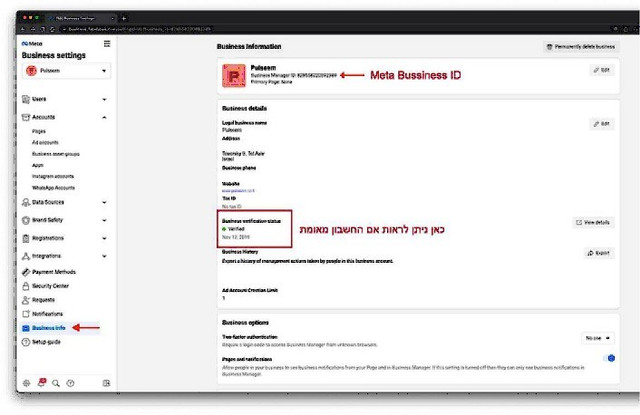
The screenshot is from the original Hebrew guide. Interface labels and locations may change.
Current reference information
Checked on 15 October 2026: Meta messaging limits, template component limits and WhatsApp Business Messaging Policy. Always check the limits and status shown in your own account before sending.
 Previous Guide


